
Key Takeaways
| What to do | Why it matters | Quick win |
|---|---|---|
| Use an iframe widget with clear URL params | It works on most school sites and LMS pages | Link to REST API endpoint docs for GPA calculator for a single source of truth |
| Keep the widget fast with lazy-load + a facade | Faster pages = more students actually use it | Load the real widget only after a click |
| Lock in sizing and responsive rules | Stops layout jumps and ugly scroll bars | Set width to 100% and a stable height |
| Make accessibility a default | More students can use it on any device | Add labels, keyboard focus, and good contrast |
| Add “scale + grading rules” up front | Fewer wrong GPAs and fewer support emails | Link to weighted vs unweighted GPA guide and letter to point GPA conversion guide |
Embed Widget Customization Guide: Start With a Clear Goal
A GPA widget has one job. It must let a student enter grades and credits and get a result fast. The best embeds feel like part of the school site, not a random add-on. Start by deciding the “default path.” Many schools want unweighted 4.0 first, then an option for weighted rules.
A simple embed also reduces mistakes. Students often mix quality points, credits, and letter grades. A widget can set guardrails with defaults and helper text. If you want a reliable rules page to link in the widget, use GPA formula guide and quality points vs GPA explained.

Choose the Embed Type: Iframe First for Most Schools
Most schools should start with an iframe. It is easy to paste into a CMS, and it keeps the widget code separate from the host page. That separation reduces conflicts with site themes and plugins. It also makes updates simple. You change the widget once, and every embed gets the update.
HTML5 “drop-in” widgets can work too, but they need more care. They often ship as a bundle and can clash with older scripts on a district site. If you want a clean baseline for widget behavior and API fields, keep REST API endpoint docs for GPA calculator close by.

Use URL Parameters to Set Defaults Students Actually Need
Good customization starts with sane defaults. An iframe URL can carry settings like theme, scale, and mode. This cuts clicks and reduces confusion. For example, a high school page might default to a weighted view, while a community college page might default to a 4.0 unweighted view.
Keep params short and clear. “theme=light” and “scale=4.0” are easy to understand. Use a clear help path for students who ask, “What scale does my school use?” Link to types of GPA scales and GPA scale comparison near the widget or in a small help panel.

Match School Branding Without Breaking the Layout
Branding should never reduce readability. Use safe choices: a clean font, strong contrast, and simple spacing. If the host page has a dark header, your widget can still stay light for clarity. If you offer both themes, keep inputs and buttons consistent across modes.
Avoid heavy animations and big shadows. They slow the page and distract students who just want an answer. If your audience includes honors and AP students, add a clear toggle that links to rules help like GPA weighting guide for honors and AP and weighted vs unweighted GPA.

Make It Responsive: Stable Width, Predictable Height
A widget must work on phones. Set the iframe width to 100% so it fits any container. Pick a stable height that fits the full form. If you need dynamic height, use postMessage resizing, but keep it tested. Scroll bars inside scroll bars feel awful on mobile.
Layout jumps hurt trust. Students think the page is broken. Fix this with a reserved space for the widget. If your widget supports multiple calculators, keep the UI consistent with pages like college GPA calculator and high school GPA calculator so users recognize the pattern fast.

Speed Wins: Lazy-Load, Facades, and Non-Blocking Scripts
School sites often run many scripts. Your widget should add almost no pain. Lazy-load helps when the widget sits below the fold. A facade helps even more. The facade is a lightweight preview that looks like the widget, then loads the real widget on click. This keeps the first paint fast.
Some benchmarks for lightweight HTML5 widgets report huge size savings compared to heavier embed systems. Smaller bundles help students on slow Wi-Fi. Keep third-party scripts to a minimum, and load any extras with async or defer. For error prevention tips that cut rework, link to common GPA calculation errors to avoid.

Accessibility: Labels, Keyboard, and Clear Feedback
A GPA widget must work for everyone. Use real labels for every input. Support keyboard navigation from first field to final result. Keep focus states visible. Use short error messages that explain what to fix, like “Add credits for this class.”
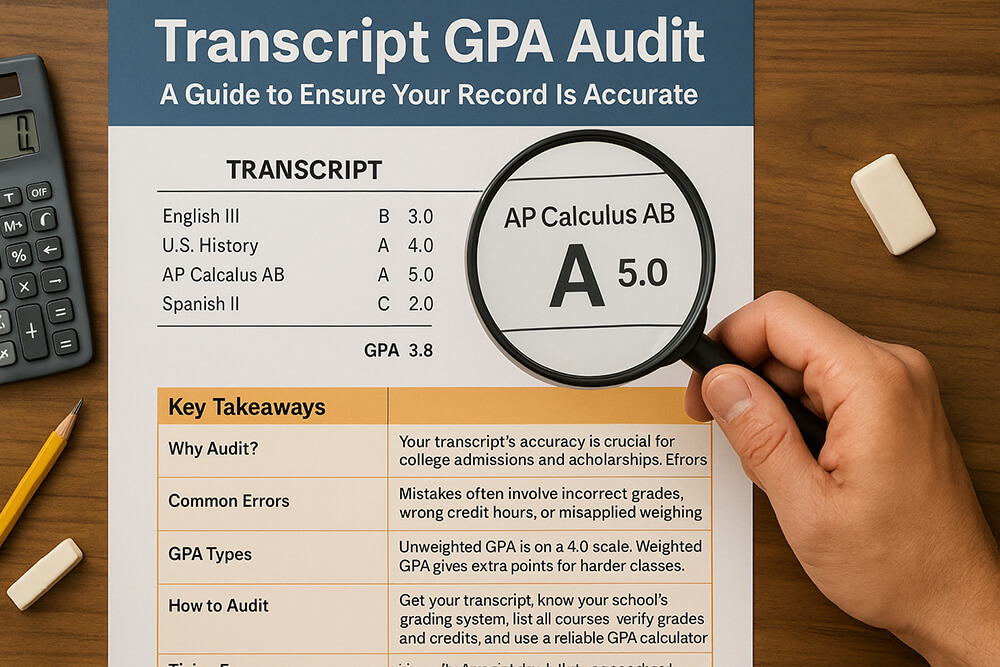
Color alone should not carry meaning. If you color-code grades, add text labels too. If you show a heat map or trend, give a text summary. Helpful related tools include letter grade heat map and transcript GPA audit guide, since many students want to verify what they see.

Privacy Basics for Schools: Keep Data Local and Minimal
Many schools prefer “no accounts needed.” That is a strong default for a GPA widget. Students can calculate without sharing personal info. If you add analytics, track only what you need, like anonymous events for “calculate” clicks. Avoid storing names, student IDs, or full transcripts.
If you offer optional save or export, make it clear and opt-in. Provide a plain explanation of what gets stored and why. For students who worry about transcript accuracy, link them to transcript GPA audit guide and how to calculate GPA so they can double-check inputs.
LMS and CMS Integration: Canvas, Moodle, WordPress, Notion
Most LMS pages accept iframes in content blocks, but rules vary by admin settings. Keep your embed code simple so staff can paste it without edits. For WordPress, avoid relying on shortcodes that break in editors. For Notion, expect limits and test a plain embed first.
If you support multiple calculator modes, match them to the page context. A “semester view” fits a course page, while “cumulative view” fits advising pages. Helpful destinations include semester GPA calculator and cumulative GPA calculator for users who want deeper tools.

Guardrails: Error Handling, Fallback Content, and Edge Cases
Students enter messy data. They type “A+” where your school uses “A.” They leave credits blank. They mix pass/fail with letter grades. Your widget should handle these with calm rules and clear prompts. If the host page blocks iframes, show a fallback link to the full tool on the GPA Calculator homepage.
Edge cases matter. Incomplete grades and repeat courses can change outcomes a lot. If your widget includes those options, link to rule explainers like how pass/fail grades impact your GPA and repeat course GPA recalculator.
Advanced Customization: Imports, Multi-Term Views, and Trend Insights
Some schools want more than a quick GPA. Advising teams like trend views and “what grade do I need?” features. If you add them, keep them optional so the default widget stays simple. A good pattern is a basic mode with an “advanced” toggle.
Imports can help too. If a student has many terms, bulk entry saves time. This can pair well with tools like multi-semester GPA bulk import tool and GPA trend graph generator. Keep privacy in mind. If you allow file import, process it in the browser when possible.

Launch Checklist: QA, Placement, and Simple Success Metrics
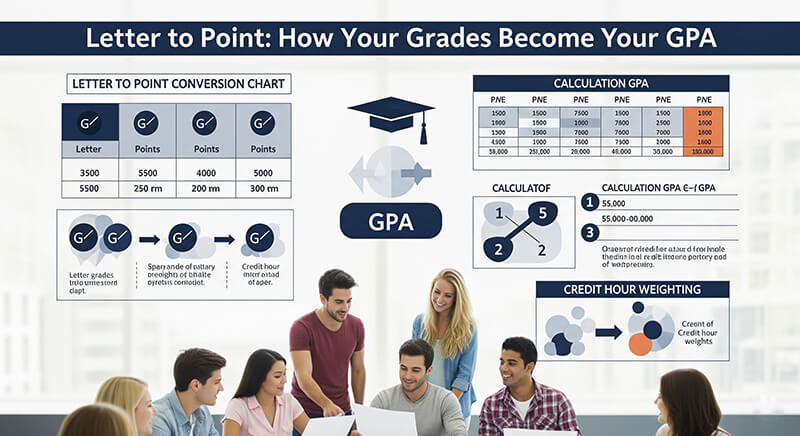
Test the widget on real pages. Use a phone and a cheap Chromebook profile if you can. Check that the result looks right for common cases. Cross-check a few sample schedules with letter to point GPA conversion guide and credit hour weighting GPA guide to catch rounding or credit mistakes.
Place the widget where students already look. Advising pages, program pages, and “how to calculate GPA” help pages convert well. Then watch simple metrics: load time, calculate clicks, and exit rate. If you see confusion, link more clearly to study tips for better grades and study habit audit checklist to support students who need help fast.

Frequently Asked Questions
What is the safest embed for most school sites? An iframe is usually the safest choice because it isolates the widget from the host site’s theme and scripts. A clean setup pairs well with REST API endpoint docs for GPA calculator.
How do I let users switch between weighted and unweighted GPA? Add a clear toggle and explain the difference in plain words. Link to weighted vs unweighted GPA guide and GPA weighting guide for honors and AP for rule details.
How can I stop the widget from slowing down the page? Use lazy-load and a facade so the full widget loads only after user intent. Keep extra scripts minimal. If students still report wrong results, point them to common GPA calculation errors to avoid.
What height should the iframe be? Pick a height that fits the full form without internal scrolling on mobile. If the widget has multiple modes, test the tallest mode. For full-page alternatives, link to college GPA calculator.
Can the widget handle pass/fail classes and incomplete grades? Yes, if you add those rules and validate inputs. Provide clear help links like how pass/fail grades impact your GPA and GPA planning for incomplete grades.
How do international students convert grades to a US 4.0 scale? Offer a conversion mode or link to a guide that matches their system. A solid hub is international GPA converter guide, with options like UK class system to 4.0 GPA conversion and China 100-point to 4.0 GPA conversion guide.
Where should a school place the widget for the best use? Put it on advising and admissions support pages where students already ask GPA questions. Pages tied to rules and benchmarks work well, like GPA requirements for college admissions and GPA benchmarks for professional programs.
What is the simplest “help link” to include inside the widget? Use one plain link for “How GPA math works” and one for “Which scale is used.” Good picks are how to calculate GPA and types of GPA scales.